
Transferring files between a PC and an Amiga using floppy disks
An Amiga floppy drive holds 880 KB (or 1.76 MB on some models), so it can read 720 KB PC disks.
The reverse does not work with a standard PC floppy drive: a PC cannot read 880 KB Amiga disks, even with its 1.44 MB drive.
Download the following files and put them on a 720 KB floppy disk.
LHA: archive extraction tool.
LHX: archive extraction tool.
LZX: archive extraction tool.
Sysinfo 3.23: system information and CPU, hard-drive and RAM tests.
NoClick: stops the floppy drive clicking. Put it in the WBStartup directory.
MagicMenu 2.30: adds context menus and improves the appearance of Workbench menus.
MasterGrabber: captures screenshots in IFF format. The software is free, but requires registration by email.
Copy the first three tools to the C directory and Sysinfo 3.23 to Tools. Extract the other archives.
1) Enabling PC floppy disk support on an Amiga
You need to install a driver supplied with Workbench 2.1 and later.
Move PC0 (the zero denotes the internal floppy drive) from STORAGE/DOS DRIVERS to DEVS/DOS DRIVERS, then restart the Amiga.
When you insert a disk, two icons will appear. One will contain question marks to indicate that it cannot be read.
You can also format PC floppy disks on the Amiga.
2) Finding the C directory on the Workbench partition
C is a system directory and is hidden in the default icon view. To display it, use the right mouse button to open the Window menu, then select Show and All Files.
3) Extracting archives
The tools installed above use text commands rather than a graphical interface. Open the Shell and enter the commands you need:
pc0: changes to the floppy drive.
lha x name.lha destination extracts an archive to the specified destination.
Example: extracting MasterGrabber
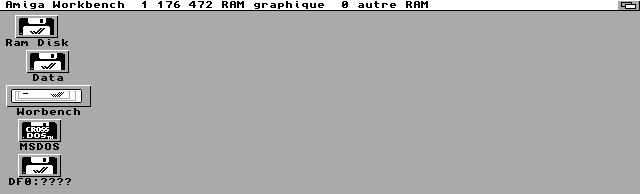
Open the Workbench menu using the right mouse button, choose Execute Command, type CLI and click OK.
pc0: goes to the floppy disk containing the file.
dir lists the files.
lha x master~1.lha ram: extracts the archive to RAM.
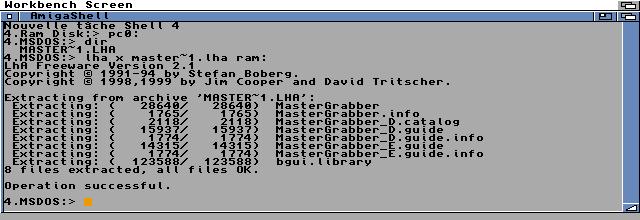
Close the Shell and open the RAM icon to see the extracted files. Move them to permanent storage afterwards: files in RAM are erased when the Amiga resets.
Written by Ced and Sébastien LIGEZ - Images by Ced - 11 September 2004