
This tutorial is intended for Amiga beginners. It explains a complete AmigaOS 3.1 installation on a classic Amiga, using an A1200 as the example.
Hardware and software required
- A classic Amiga (A2000, A3000, A4000, A1200, etc.).
- The six AmigaOS 3.1 disks: Install, Workbench, Extra, Locale, Storage and Fonts. Buy the AmigaOS 3.1 disk set.
- ROM version 3.0 or 3.1 in your classic Amiga (optional, but recommended in this guide).
- A hard drive connected to the Amiga IDE port.
Preparing and partitioning the hard drive
Insert the "Install" disk and switch on the Amiga. When Workbench appears, open "Install3.1", then "HDTools" and "HDToolBox".
HDToolBox detects and partitions the hard drive. The following window should appear.
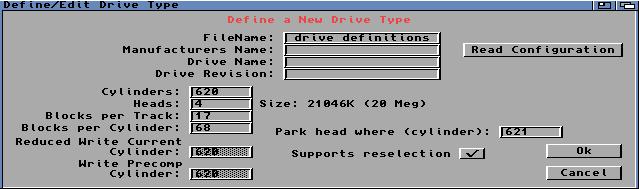
The drive may not be recognised immediately because there are many different models. Click "Change Drive Type".
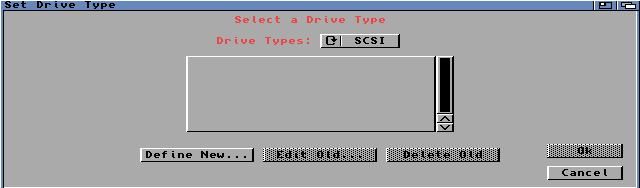
Click "Define New...".
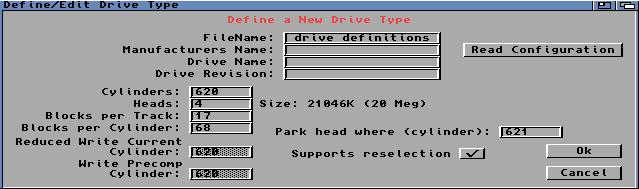
Click "Read Configuration". The drive name, model, revision and correct capacity should appear.
The standard AmigaOS 3.1 setup does not support access beyond the 4 GB limit without system modifications.
Click "Ok" to return to the main window. Click "Save Changes To Drive" to save your changes, then open "Partition Drive".
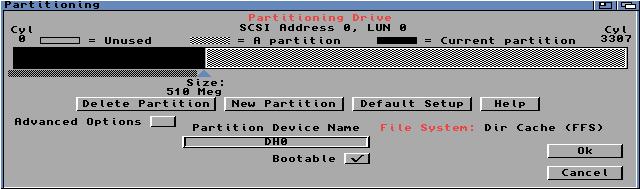
This guide uses two partitions: the first for the system, and the second for data and programs.
AmigaOS 3.1 occupies about 15 MB, so the system partition does not need to be large. In this example, 500 MB of a 1.7 GB drive is allocated to it.
Once you are happy with the partition sizes, you can name them. DH0 and DH1 are the default names, which we will keep.
Make the system partition (DH0) bootable by selecting "bootable", then click "Ok".
Back in the main window, click "Save Changes To Drive" again, then "Exit". Partitioning is complete.
Restart the Amiga with the "Install3.1" disk still in the drive. Two new icons appear alongside RAM: and Install3.1: these are the partitions you have just created.
Their names look unusual because they are non-DOS disks, not yet formatted or recognised by AmigaOS.
Select DH0, then open "Icons/Format Disk..." using the right mouse button. In the formatting window:
- Give the partition a name. We use "Workbench".
- Select the trashcan option.
- Select "FFS".
- Select International Mode.
- Select Directory Cache mode.
- Click "Quick Format".
Repeat this for the second partition, naming it "Data", for example.
The DH0 and DH1 names used in HDToolBox differ from the names displayed below the icons after formatting. You can change the displayed names using "Rename" in the Icons menu.
Installing Workbench 3.1
On the "Install3.1" disk, open "Install", then select the installer language. The original example uses "Français".
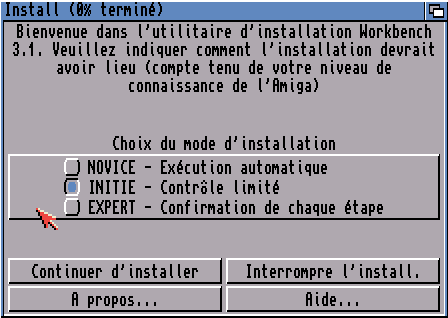
Follow the on-screen instructions and select the intermediate user level. Expert mode is longer and more complicated for beginners.
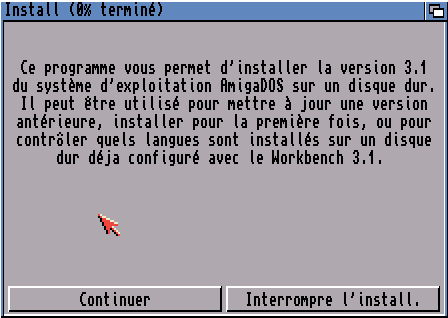
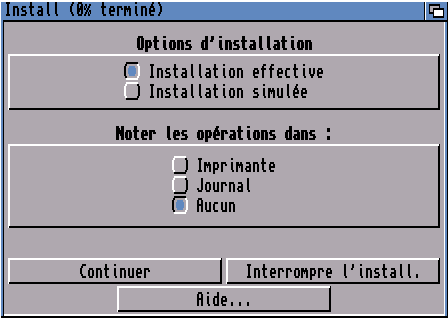
Use the options shown below.
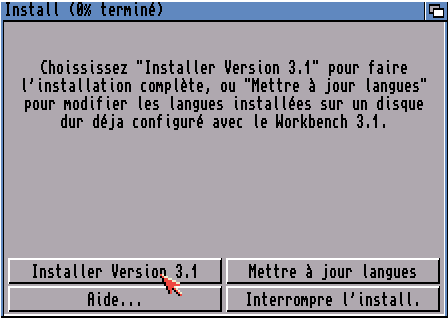
Install the system on the "DH0:" partition.
The installer then asks for a language, printer and keyboard. The original example selects French for the language and keyboard and leaves the printer unselected. Choose the settings appropriate for your own keyboard and language.
The files are copied to the hard drive. When prompted, insert the "Fonts" disk, then the "Storage" disk.
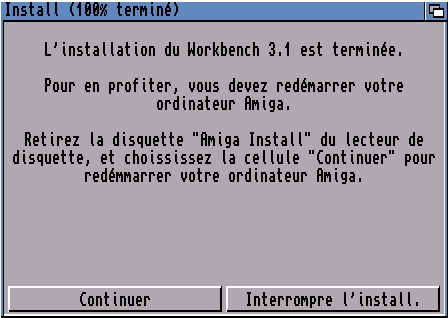
After a few minutes, the following message appears.
Installation is complete. Remove the floppy disk and restart the Amiga. It will now boot from the hard drive with AmigaOS 3.1.
Result
This is what the installed Workbench looks like.
Article by David Brunet and Sébastien Ligez - July 2004