
A GOTEK drive can give a new lease of life to an Amiga with a faulty floppy drive. It replaces the original drive and reads disk-image formats such as ADF, DSK, IMA, IMG, ST and HFE from a USB stick.
This illustrated guide explains how to update a GOTEK running FlashFloppy and how to convert an IPF file to HFE.
Updating GOTEK firmware
At the time this guide was written, the two firmware options discussed were HxC and FlashFloppy. The procedure below covers FlashFloppy; the HxC procedure is similar.
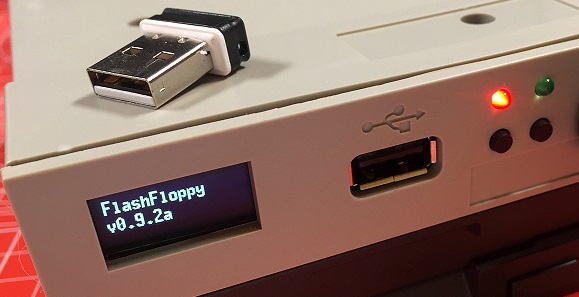
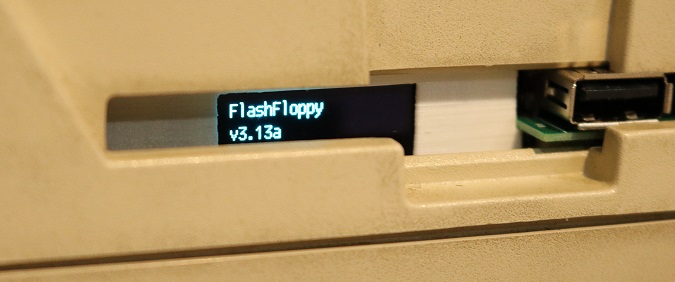
First, check whether the installed firmware is already up to date. Switch on the Amiga without a USB stick inserted. The GOTEK display shows its firmware version, such as v0.9.2a below.
Files required
Download FlashFloppy firmware from the official website. The historical example below uses version 3.13a, hosted by AmigaMuseum: download FF_Gotek-v3.13a.upd.
Copy "FF_Gotek-v3.13a.upd" to the root of a USB stick containing no other files.

With the Amiga switched off, insert the USB stick into the GOTEK.
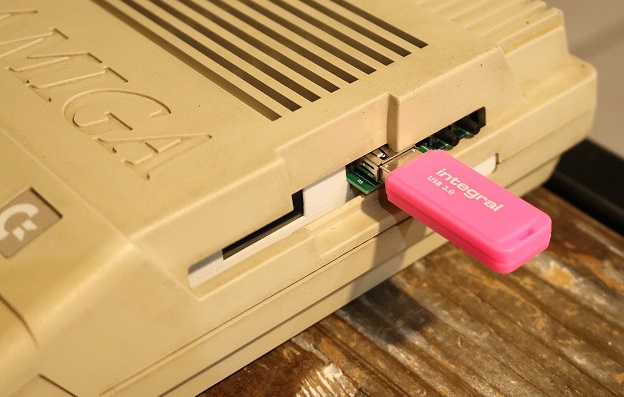
Hold down both GOTEK buttons.
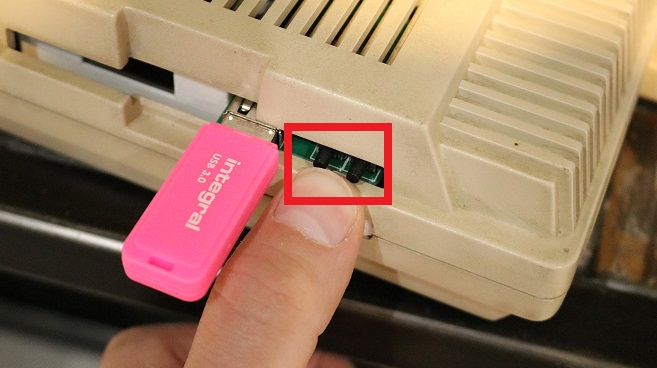
Switch on the Amiga. After a few seconds, release both buttons. The firmware update starts, and various messages appear on the display until "ERROR 34" or "ERR 34" remains.
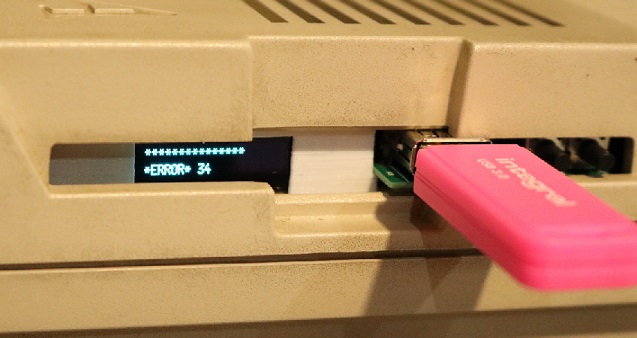
In this example, that error is expected: the GOTEK cannot find an ADF or other disk image on the USB stick.
The firmware update is complete. Remove the USB stick and restart the Amiga. The display should now show the updated version.
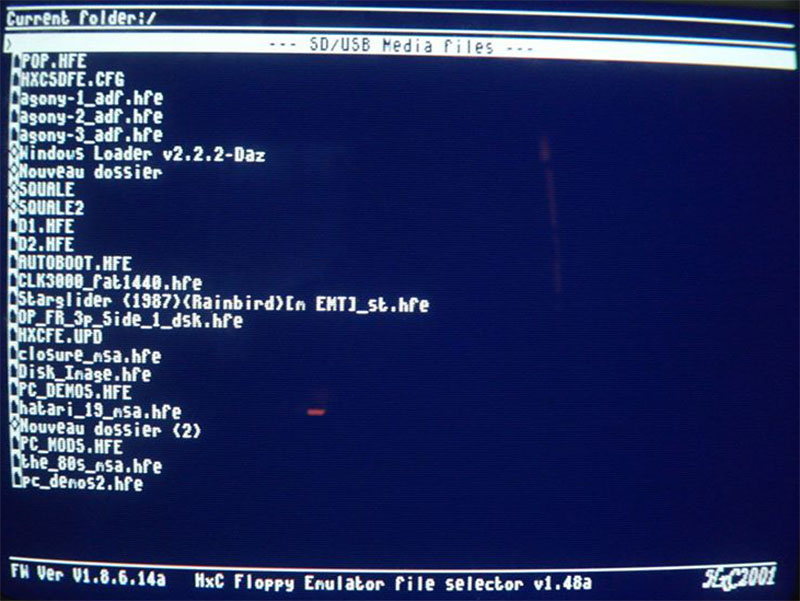
Adding a GOTEK startup selection menu
A startup menu lets you select a disk image from the files on the USB stick using the Amiga screen and joystick, rather than the small GOTEK display and buttons.
To install the menu, download these two files:
Copy both files to the root of the USB stick. The menu appears at startup while they remain there. Remove the two files to remove the menu.
Converting IPF files to HFE
At the time this guide was written, FlashFloppy read ADF files directly but could not read IPF files. Unlike ADF images, IPF images can preserve physically copy-protected disks, including original games. Some Amiga software is available only as IPF because its protection prevents a standard ADF image from being created.
The workaround described here is to convert IPF files to HFE, a format supported by FlashFloppy.
Files required
The example uses HxCFloppyEmulator v2.2.2.1 to convert IPF images to HFE.
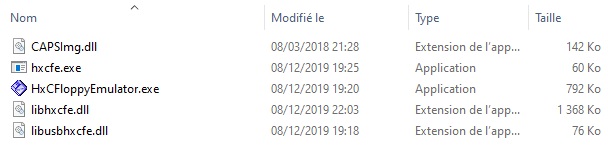
Download "HxCFloppyEmulatorv2.2.2.1.zip" and extract it to your PC hard drive. The following files appear.
Run "HxCFloppyEmulator.exe" to open the following window.
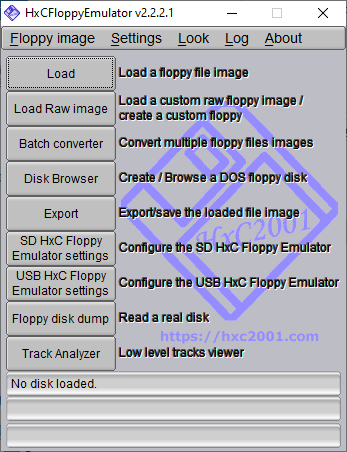
Click "Batch converter".
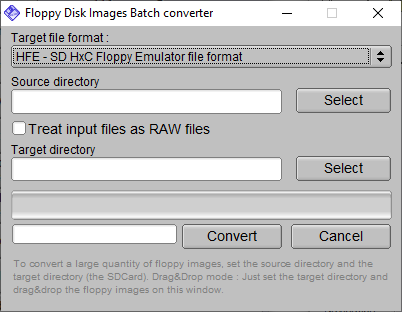
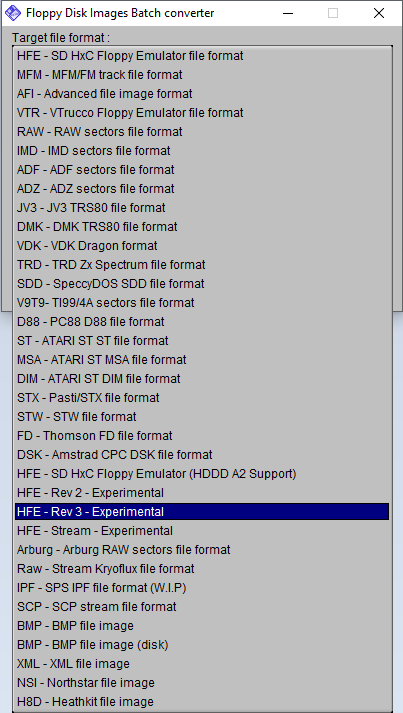
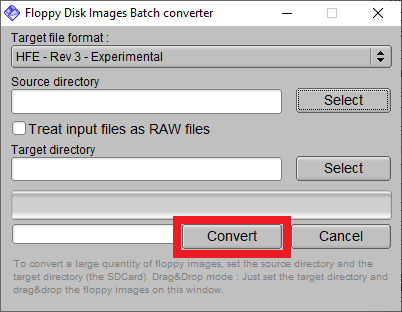
Open the list under "TARGET file format" and select "HFE - Rev 3 - Experimental".
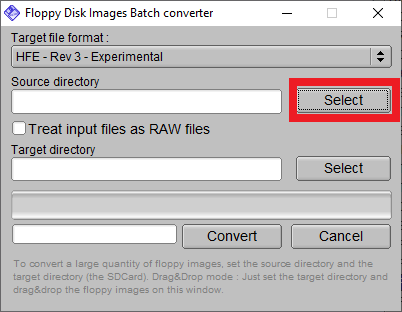
Click "Select" beside "Source Directory" and choose the folder containing your IPF files.
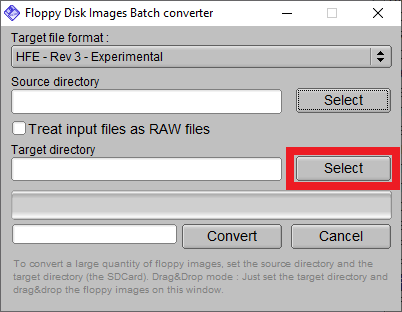
Click "Select" beside "Target Directory" and choose where the converted HFE files will be saved.
Important: the target directory must be different from the source directory.
Click "Convert" to start converting the files.
When conversion finishes, copy the HFE files to your USB stick, insert it into the GOTEK and switch on the Amiga. You are ready to play.
Thanks to DlfrSilver for his help.
(c) TITAN (Eric Cubizolle) - 2020