
Note: The same procedure applies to the Amiga 600.
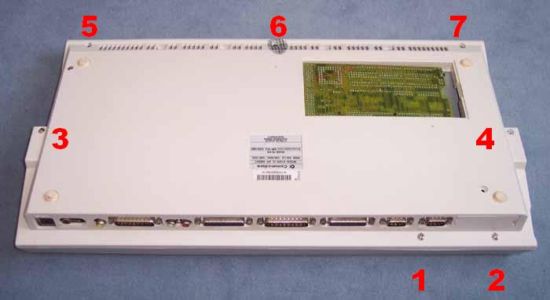
Here is the underside of the Amiga 1200. Remove the seven screws.
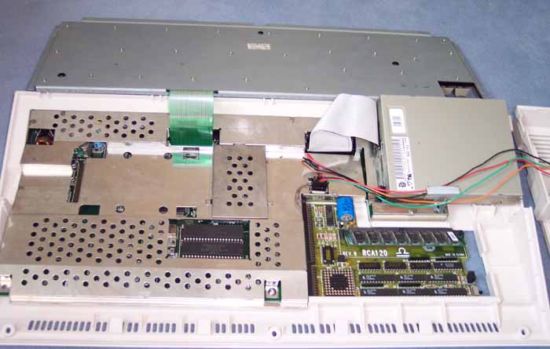
The space for the hard drive is at the upper left in the next picture. Take care with the green keyboard ribbon and the case LED wires: they are fragile.
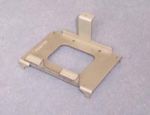
This is the 2.5-inch hard-drive cradle. It is normally included in the Amiga 1200HD. If yours does not have one, installation is possible without it.
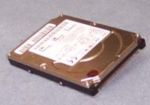
This is a 2.5-inch hard drive. PC IDE drives can be used. Depending on the Workbench version, the Amiga may only use 2 GB of the drive.
Use a short 44-pin female-to-female ribbon cable to minimise the space required. No separate power cable is needed: power is carried through the ribbon cable.
To buy a ribbon cable, click the image.
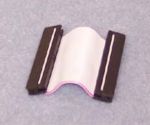
Fit the hard drive to the cradle. You can fasten it with small screws from underneath.
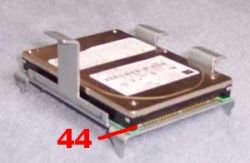
Connect the ribbon cable. The side opposite the red stripe must line up with pin 44, at the left edge of the drive when its rear is facing you.
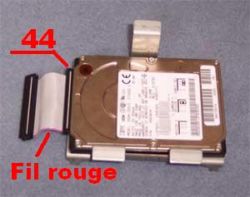
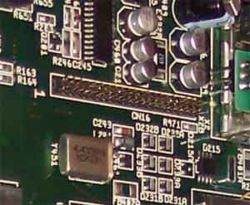
Connect the ribbon cable to the motherboard pins.
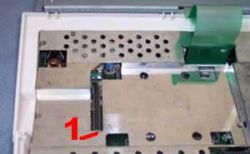
The red stripe must line up with the motherboard marking "1".
The hard drive is installed. Replace the keyboard and upper case, then refit the seven screws.
Switch on the computer without a floppy disk in the drive. If the screen below appears, the hard drive is correctly fitted. Insert the Workbench "Install" disk and begin installing the system on the hard drive.
An AmigaOS 3.1 installation guide is available here.
Article by Floppy - April 2014